Focus one
Your life has many areas. So does your to-do app.
Focus one – your personal task manager
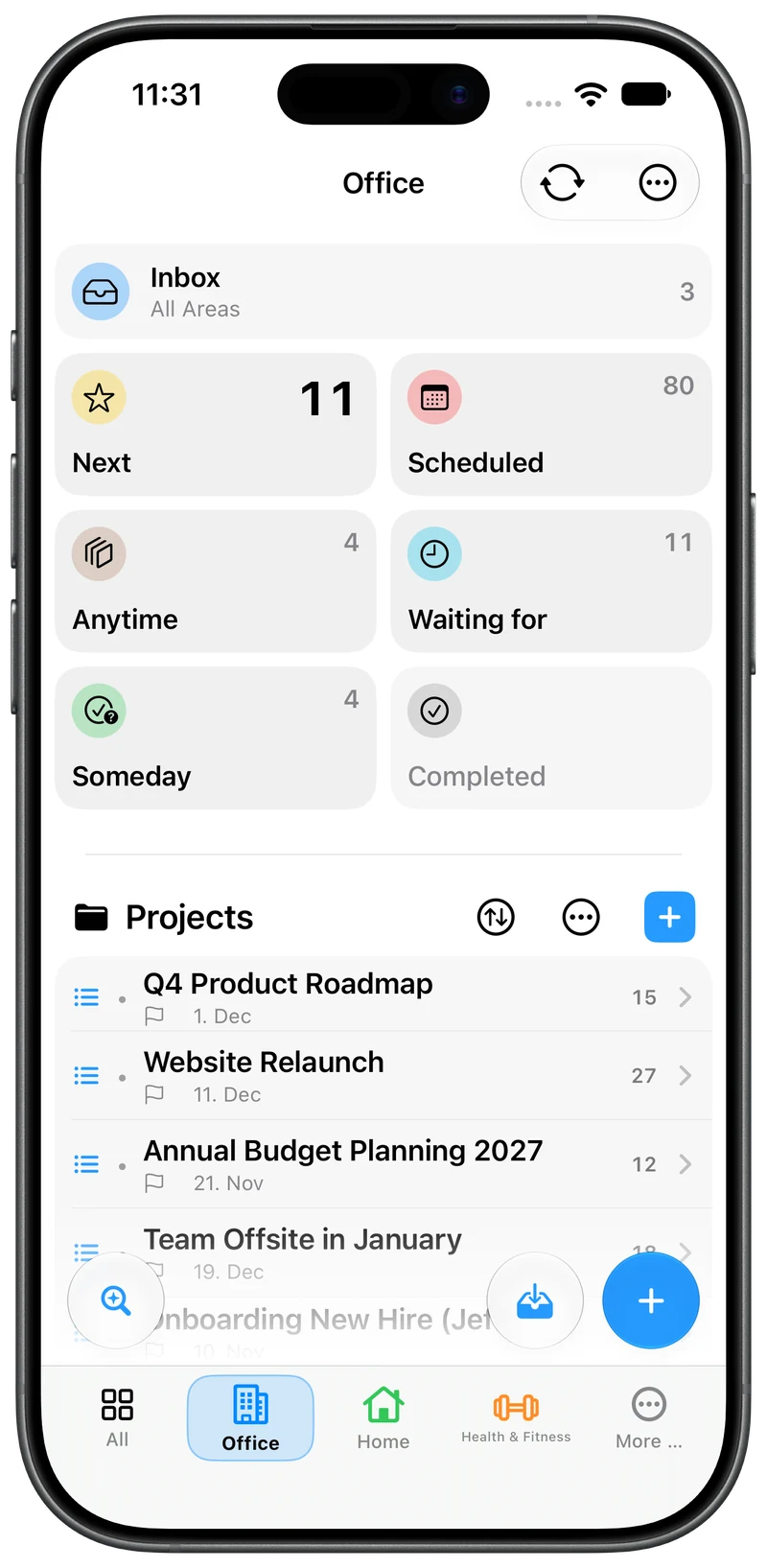
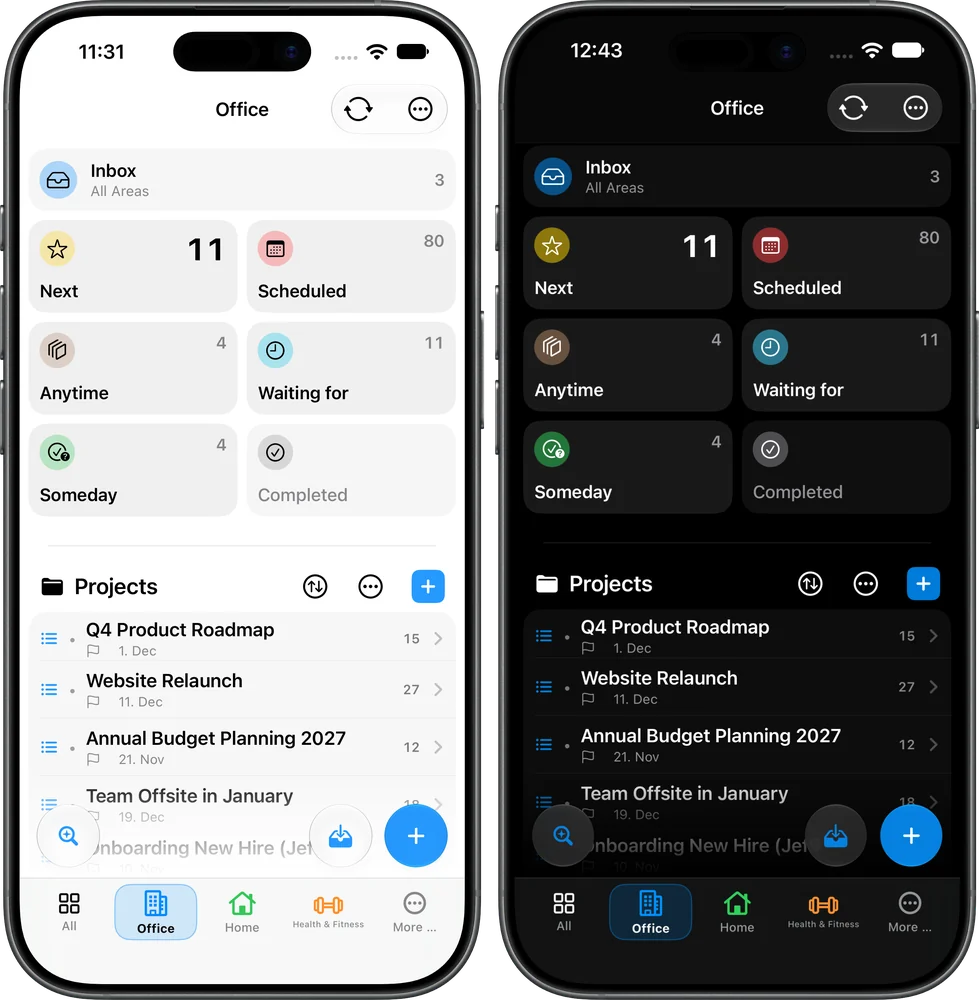
You switch the Area, and lists, projects and tasks show only what matters there. Focus one keeps Office, Home, Studies and every other life or work area neatly separate.

Free to start · for iPhone, iPad and Mac
Help & guides →Think and work in life and work areas
Your days are made of Office, Home, Family, Club, Sports, Studies, IT – and more. In Focus one these life and work areas are the top level. You name them and give each its own color and symbol. Switch the Area and lists, counters and projects adapt: you see only what is going on there.
On Mac and iPad you switch with the Area rail at the edge of the window, on iPhone with the bar at the top. On the Mac you can also use the keyboard: ⌥⌘1, ⌥⌘2 …
Your own color and symbol. Recognize each Area at a glance. On iPad and Mac the sidebar can take on the Area color.
Lists and counters adapt. “Next” in Office is something different than “Next” in Family.
Favorites in the bar. Your most important Areas always at hand, all others in the menu.
All Areas. When you need the big picture, Focus one shows everything together, with projects grouped by Area if you like.
One Inbox for everything. New things land in the Inbox first, which applies to all Areas. File them later.
No obligation. Projects and tasks can belong to an Area, but don’t have to.
Unlimited, even for free. As many Areas as you need. There is no cap on tasks and projects either.
From thought to done
First everything out of your head, then sort it, then get it done.
Capture
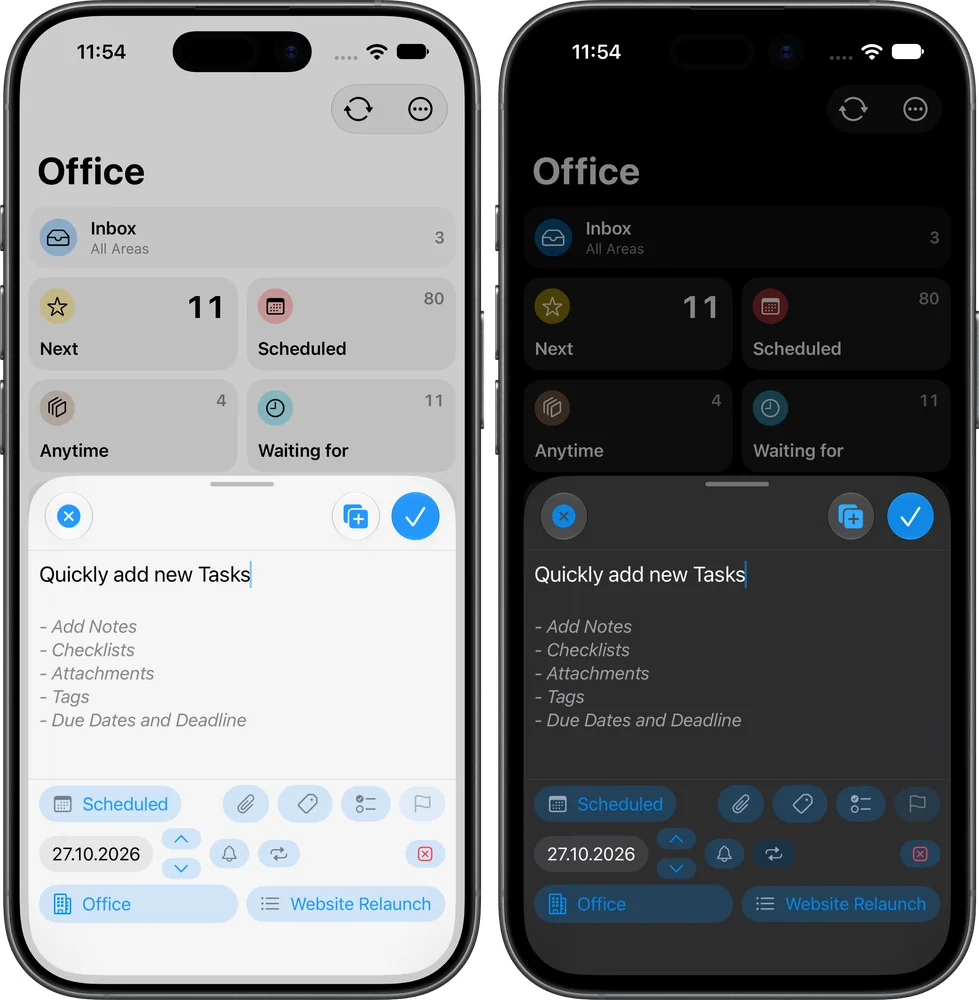
Get it out of your head and into the Inbox fast. Collect everything there: ideas, tasks, emails. Your head is for thinking, not for remembering. The Inbox spans all Areas – one single place to collect. Where something belongs, you decide later.
Clarify and organize
Go through the Inbox calmly. What is relevant or needs follow-up goes into a project or a list such as “Next” or “Waiting for”. Through its project a task automatically gets its Area; single tasks without a project you assign to an Area yourself.
Do
Pick an Area and you see only what matters there right now. Everything else is hidden – no distractions. Check what is in “Next”. If needed, set a Focus on the two or three tasks you want to get done now.
And in between, always review everything
So that nothing slips through the cracks, review everything regularly. Projects are alive: tasks get added, dropped or finished, and some things need waiting. Focus one reminds you subtly: a colored dot before the project title shows that a review is due. You set the interval for each project yourself. Review is a Pro feature.
Projects that fit the way you work
Each project is either parallel (all tasks are available) or serial (only the next step shows up in “Next”). Set projects to inactive when nothing is happening – optionally with a date when they come back on their own. Each project has its own review interval (default: 7 days); when a review is due, Focus one shows a subtle hint. With Project focus you bring a whole project to the front. Serial projects and Review are part of Pro.
Focus on every level
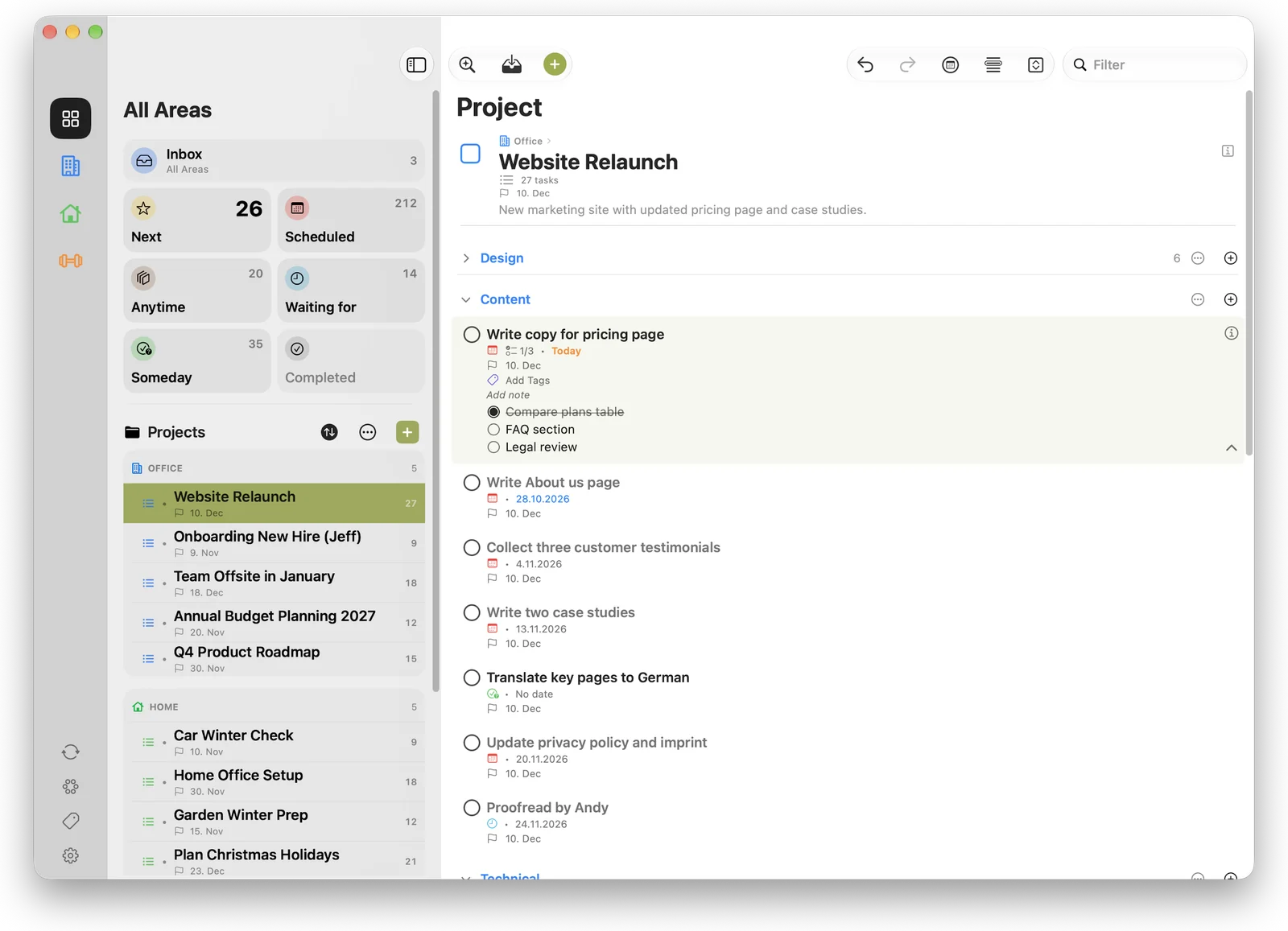
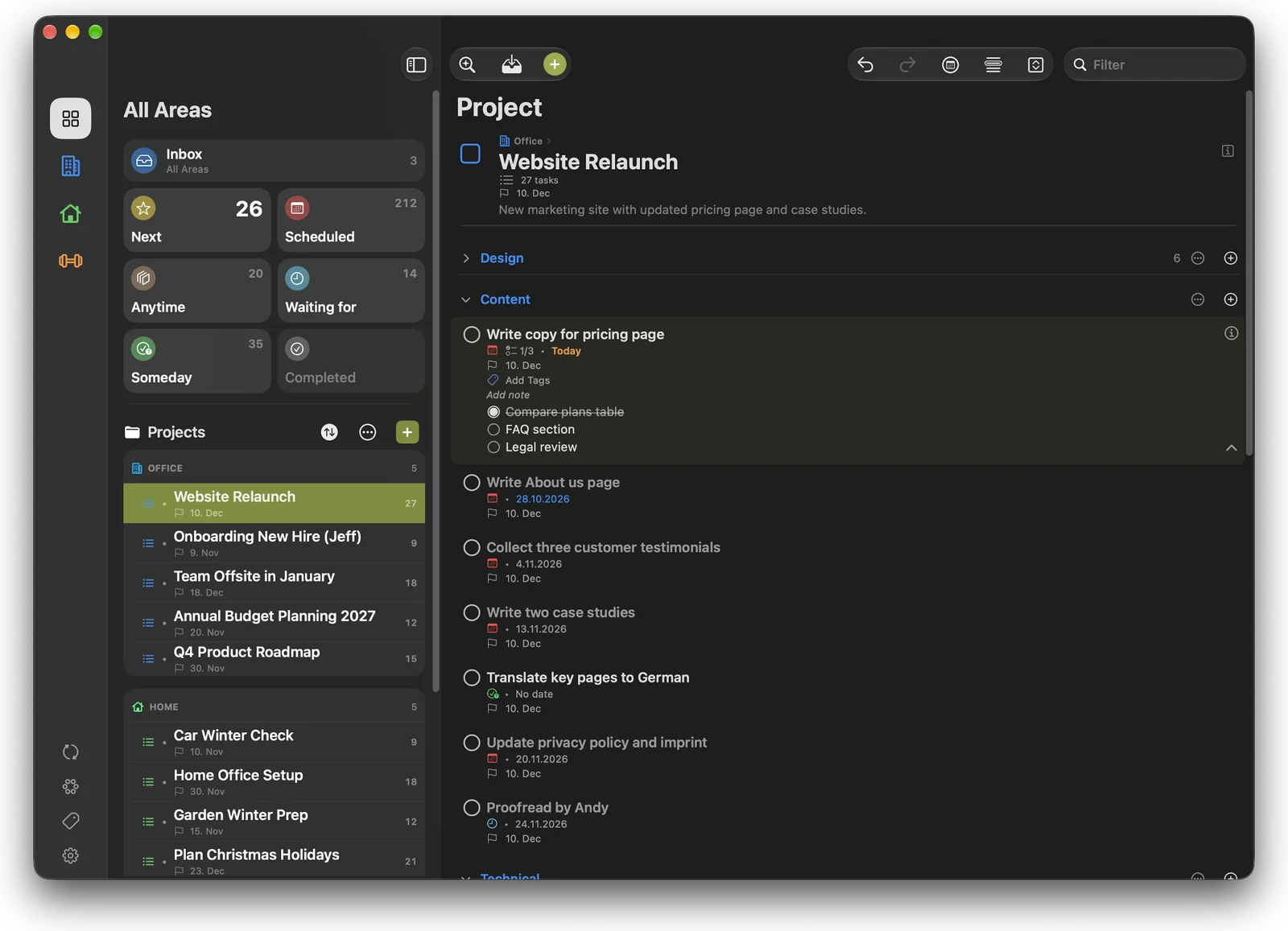
Pick an Area, bring a project into focus, put single tasks onto the Focus list. The flood of possibilities narrows step by step to what is due now. Plus the classic lists: Next, Scheduled, Waiting for, Anytime and Someday.
What Focus one looks like
Everything else you need
Capture fast
Quick Add, Siri (“Dictate a task in Focus one”), share extension – and on the Mac, Quick Capture with a keyboard shortcut (default ⌃⌥Space) from anywhere, plus – on iPad and Mac – drag & drop for Mail messages and Safari links (Quick Capture and Mail Drop with Pro).
Widgets and Shortcuts
Task count and task list widgets for the Home and Lock Screen, for the Inbox, Focus, Next or Scheduled and, if you like, per Area. Plus a widget for capturing and controls for Control Center and the Action button (iOS 18). With Shortcuts you create tasks with list, Area, project and date, get lists, and open lists, Areas and projects – all free.
Plan
Due dates, deadlines with lead time, “Show from”, repeating tasks, reminders and calendar events (Pro) in “Next” and “Scheduled” (across all Areas).
Organize
Tags, checklists, attachments (photo, scan, file, link) and project templates with YAML export and import – both with Pro.
Mac comfort
Quick Navigator with ⌘K, keyboard shortcuts for lists (⌘1–⌘8) and Areas (⌥⌘1 …).
Switching over
Import from Apple Reminders: open items from one list land in your Inbox. With Pro automatic, from several lists, and straight into a project.
Private
iCloud sync with no account and no server of our own. Your tasks stay in your iCloud, and Markdown export always gets you your content for free.
Help & guides
Quick start, how Focus one works, step-by-step guides, keyboard shortcuts and tips: everything in one place.
- Quick Start
- Areas
- Projects
- Siri & Shortcuts
- Keyboard shortcuts
- Free vs. Pro
Free and Pro at a glance
Focus one is free to use, with no limit on tasks, projects or Areas. Pro unlocks additional features.
| Feature | Free | Pro |
|---|---|---|
| The basics | ||
| Tasks, projects and Areas, unlimited | Included | Included |
| All lists incl. Focus, Waiting for and Someday | Included | Included |
| Notes, checklists and tags | Included | Included |
| Repeating tasks, deadlines with lead time, “Show from”, reminders | Included | Included |
| Parallel projects and headings | Included | Included |
| iCloud sync across iPhone, iPad and Mac | Included | Included |
| Markdown export of lists and projects | Included | Included |
| Capture | ||
| Quick Add, Siri, share extension | Included | Included |
| Widgets, controls and Shortcuts (add and get tasks) | Included | Included |
| Apple Reminders import | manual, one list into the Inbox | automatic, several lists with a target project |
| Mac: Quick Capture with a keyboard shortcut from anywhere | Not included | Included |
| iPad, Mac: Mail drop via drag & drop | Not included | Included |
| Organize and plan | ||
| Calendar events in “Next” and “Scheduled” | Not included | Included |
| Serial projects | Not included | Included |
| Review interval per project | Not included | Included |
| Attachments (photo, scan, file, link) | Not included | Included |
| Project templates, export and import as YAML (also via Shortcuts) | Not included | Included |
| Duplicate a project | Not included | Included |
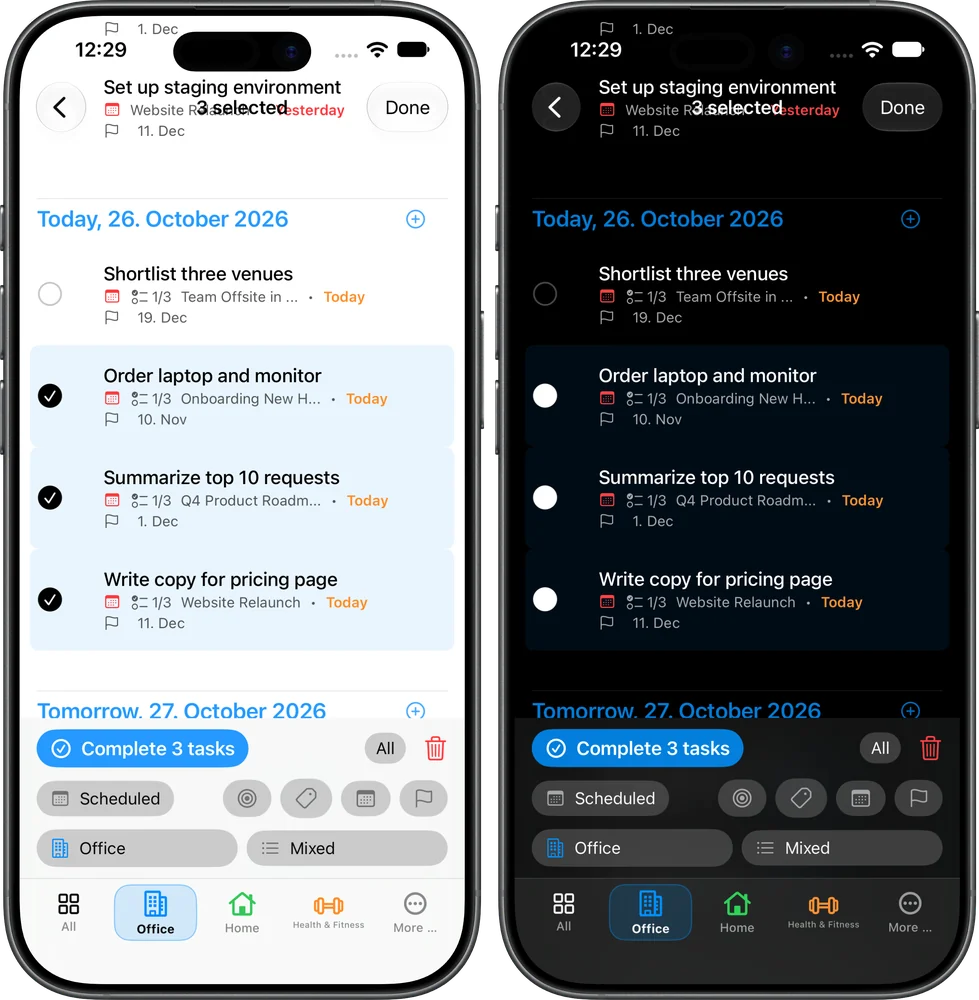
| Multi-select: edit several tasks at once | Not included | Included |
| Comfort and appearance | ||
| Quick Navigator ⌘K, search, keyboard shortcuts | Included | Included |
| Undo/redo, drag & drop, swipe gestures | Included | Included |
| Duplicate a task | Included | Included |
| Tile view for lists | Included | Included |
| Monochrome mode | Not included | Included |
Everything you have created stays visible and usable without Pro. Only creating or newly setting up Pro features is locked.
Frequently asked questions
What is an Area?
A life or work area such as Office, Home, Family or Studies. It is the top level for projects and tasks; switching it adapts lists, counters and projects.
Do I have to use Areas?
No. Tasks and projects can stay without an Area; the Inbox always applies to all.
Does the free plan have limits?
No. Tasks, projects and Areas are unlimited, synced across all your devices. Pro unlocks additional features such as attachments, calendar or Review (see the table above).
What happens when Pro ends?
Everything you have created stays visible and usable, including attachments, project reviews and serial projects. Only creating or newly setting up is locked. Calendar display, Monochrome mode and the automatic Reminders import are switched off or paused.
Do calendar events follow the Area?
No, calendar events appear across all Areas.
Can I export my data?
Yes. You can export lists and projects as Markdown for free. Export and import as YAML, for example for project templates, is part of Pro.
Do I need an account?
No. Sync runs through your private iCloud.
Which languages does Focus one support?
The app is available in German, English, Spanish, French and Italian. This website and the help section are available in German and English.
Which devices is Focus one available for?
iPhone, iPad and Mac. One purchase covers all platforms.
Can I switch over from Apple Reminders?
Yes. Open items from a chosen list can be imported into your Inbox for free. With Pro the import runs automatically, from several lists, and optionally straight into a project.
Ready to bring order to your Areas?
Get Focus one on the App Store and start for free.